
An Excel workbook can become the center of a business process without anyone planning it that way. It starts as a simple tracker. Over time, employees add formulas, approval columns, customer records, and extra sheets.
Eventually, several people depend on it to complete daily work. Different copies circulate by email, someone accidentally changes a formula, and managers spend time checking which version contains the correct information.
If this sounds familiar, you may be considering how to replace Excel with a web application.
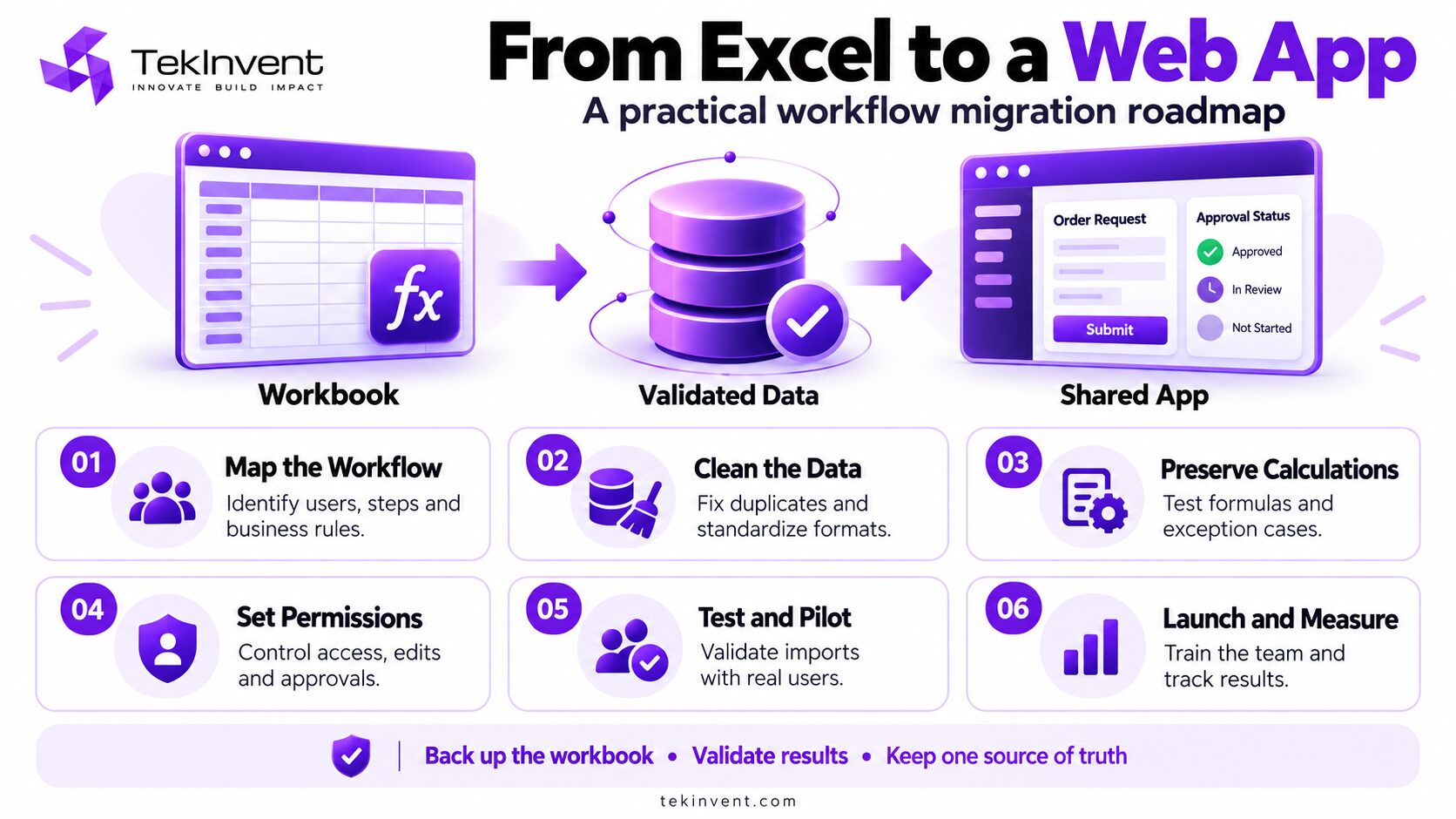
The goal is to move a specific workflow into a shared application while preserving the calculations and information your team needs. A successful migration starts with understanding the workbook, then cleaning its data, testing its rules, and introducing the replacement gradually.
When Is an Excel Workflow Ready to Move?
A spreadsheet does not need replacing simply because it contains many rows. Excel remains useful for analysis, financial modeling, and work that changes frequently.
The stronger reason to migrate is that the workbook now manages a repeatable process involving multiple people.
Perhaps sales employees enter orders, managers approve discounts, and the operations team updates delivery status. If those steps depend on emailed files and manual checks, the problem is how the work moves between people.
Other signs include frequent duplicate records, unclear ownership, sensitive information visible to everyone, and reports that require someone to combine several files.
Before approving a new application, identify the specific problem it should solve. “Reduce duplicate order entry” gives the project a clearer direction than “replace all our spreadsheets.”
Start With One Workflow
Choose a process with a clear beginning, an identifiable owner, and a measurable result.
For example, an order-tracking workflow might begin when an employee creates an order and end when the delivery is confirmed. Its users, required information, and approval steps can be documented without rebuilding every department’s tools.
Review how employees actually use the workbook. Ask where information comes from, who changes it, which cells they avoid touching, and what they do when something goes wrong.
Pay attention to work outside the file. An employee may copy a price from an email, confirm stock by phone, or save supporting documents in a separate folder. Those actions are part of the workflow even though the spreadsheet does not record them.
Define the first release around this process. Additional features can follow after the team has validated the replacement.
Understand the Workbook Before Moving Its Data
A spreadsheet contains more than the values visible on its main sheet. It may also include hidden worksheets, lookup tables, named ranges, external references, and macros.
Document how these elements support the chosen workflow.
Separate information employees enter from values the workbook calculates. Identify which formulas affect business decisions and which sheets provide reference data.
Suppose a quotation workbook calculates prices using customer categories, quantity discounts, and freight adjustments. Moving only the customer names and final totals would leave important pricing rules behind.
Create a small set of example transactions with known results. Include a normal transaction and relevant exceptions, such as a missing price, an unusual discount, or a cancelled order. These examples will help test whether the replacement behaves correctly.
Decide Whether You Need a Custom Application
Some spreadsheet problems can be resolved through better workbook controls, a shared platform, or an existing business tool.
Consider those options before committing to a custom build.
A purpose-built application becomes more relevant when your process requires specific approval rules, different access levels, several connected systems, or behavior that available products cannot accommodate comfortably.
For example, a simple shared contact list may fit an existing tool. A quotation process combining customer-specific pricing, approval limits, supporting documents, and accounting integration may require a more tailored approach.
TekInvent’s SaaS vs custom software comparison explains this broader selection decision. For this migration, make the choice around the workflow you have documented rather than the number of features a platform advertises.
Clean and Structure the Records
Before importing information, decide which records belong in the new application.
Remove duplicates, investigate missing identifiers, and agree on consistent formats. A customer entered as “ABC Ltd” in one sheet and “ABC Limited” in another may need to become one record.
Use stable identifiers where possible. An order number is more reliable for connecting records than a customer name that employees may type differently.
Dates, currencies, and units also need clear rules. If a US business exchanges files with an international team, a date such as “04/05/2026” can be interpreted differently. Define the expected format before importing it.
Keep an untouched copy of the original workbook. Record the cleanup decisions so the team can explain why a value changed or a record was excluded.
Historical information does not always need to become active data. Some records may be better retained in a searchable archive, provided the business can still access them when needed.
Turn Formulas Into Documented Business Rules
When you convert Excel to a web application, important calculations need to be reproduced or supported through an appropriate calculation engine. Uploading a workbook alone does not guarantee that every formula, macro, or external reference will behave as expected.
Explain each important rule in plain language before implementing it.
For instance: “Orders above this amount require manager approval” is easier to review than a complex formula that combines several conditions.
Document rounding behavior, missing-value handling, and exceptions. Decide whether an empty field should mean zero, unknown, or incomplete. These choices can affect totals and approvals.
Then compare results using the example transactions prepared earlier. If the old and new outputs differ, investigate why. The workbook itself may contain an error, so matching it blindly is not always the correct outcome.
The migration should preserve approved business behavior, with any intentional changes documented.
Design Screens Around the Work
The new application does not need to look like a spreadsheet.
Employees may need a simple form to create a record, a queue showing items awaiting approval, and a searchable view of completed work. Reproducing every column on one crowded screen could carry the old problems into the replacement.
An illustrative order workflow might let a sales employee create an order, show a manager only the orders needing approval, and give operations a view of approved orders awaiting fulfillment.
Agree on permissions before development. Who can edit a price? Who can approve an exception? Who can export customer information?
Restricting an action should be enforced by the application, not merely by hiding a button. Changes to important fields should also have a useful history showing who made the change and when.
Keep familiar terminology where it helps employees understand the new process.
Plan the Migration Budget Around the Difficult Parts
The effort required depends on the workflow, its calculations, data quality, permissions, and integrations.
A tracker with straightforward fields is different from a workbook containing pricing macros, external data connections, and several approval paths.
Ask the project team to distinguish the cost of building the application from the work needed to prepare data, validate calculations, run a pilot, and train users.
Hosting, backups, maintenance, and support should also be included in the discussion.
TekInvent’s software development cost guide provides broader budgeting context. For an Excel migration, the estimate should explicitly address workbook complexity and the work required to preserve existing rules.
Keeping the first release focused can control scope. It should still include the validation and access controls needed to make the workflow dependable.
Test an Import Before Moving Everything
Run a trial import using a representative sample.
Check whether records remain connected correctly, dates retain their meaning, attachments are accessible, and calculated results match approved expectations.
Compare business totals as well as record counts. Importing the expected number of orders is insufficient if their values or customer associations are wrong.
Have the people responsible for the workflow review the results. They may notice exceptions that a technical check misses.
Resolve discrepancies before attempting the full migration, and retain a record of the checks performed.
Introduce the Application Through a Controlled Pilot
Start with a small group of users completing real work.
The pilot should reveal whether employees can finish the process without returning to the spreadsheet for missing information or steps.
Observe where they hesitate, what they enter incorrectly, and which tasks take longer than expected. Use those findings to improve the workflow before expanding access.
If the spreadsheet and application run together temporarily, define which one owns each live record. Uncontrolled updates in both places can create conflicting versions.
Comparison testing can use copied records. Live operations need a clear source of truth.
Before the wider rollout, agree on how new information will be captured, who will support users, and what happens if the replacement is unavailable.
Keep Exports Without Keeping Two Active Systems
Employees may still need Excel for analysis or reporting after migration. A controlled export can support that work without making the workbook the operational master again.
Make the boundary clear. Exported information may be suitable for analysis, while approvals and live updates remain inside the application.
If changes can be imported back, define who may submit them and how they will be validated.
Retain the original records according to the business’s needs. Once the replacement is accepted, prevent obsolete workbook copies from quietly becoming active again.
Measure Whether the Migration Improved the Process
Return to the problem identified at the beginning.
Did duplicate entry decrease? Are approvals easier to track? Can employees find the current record without checking several files? Does the manager spend less time reconciling information?
Compare the new process with the baseline collected before the pilot.
A cleaner interface is useful, but the more meaningful result is a workflow that employees can complete accurately and consistently.
Discuss Your Excel Workflow With TekInvent
If a workbook has become difficult to manage, begin with one process rather than a list of every application your business might eventually need.
Through its custom software development company offering, can discuss the requirements behind that process and the options for moving it into a shared application.
Prepare a short description of who uses the workbook, its important calculations, connected systems, and the recurring problem you want to solve. Use an anonymized sample when illustrating the structure, and arrange an appropriate method before sharing sensitive information.
That gives the discussion a practical starting point: what should move, what must be preserved, and what the first release needs to accomplish.

Build Smart with The Right Team.
We bring expertise, technology, and trust you look for in your digital journey.